Controlling my Ubuntu home lab from a Windows laptop with Tailscale and NoMachine, with local wake-up verified and remote power-on next.
My home lab, from my laptop
I wanted to keep working on my cybersecurity labs when I’m away from my desk. This project connects my Windows laptop to my Ubuntu desktop so I can use the desktop’s applications and reach the environment where I run my lab VMs.
I built the setup with Tailscale for private connectivity, NoMachine for desktop control, and Wake-on-LAN for waking the wired desktop. Getting connected was only part of the work: I also tested display behavior, audio, and whether wake settings survived a reboot.
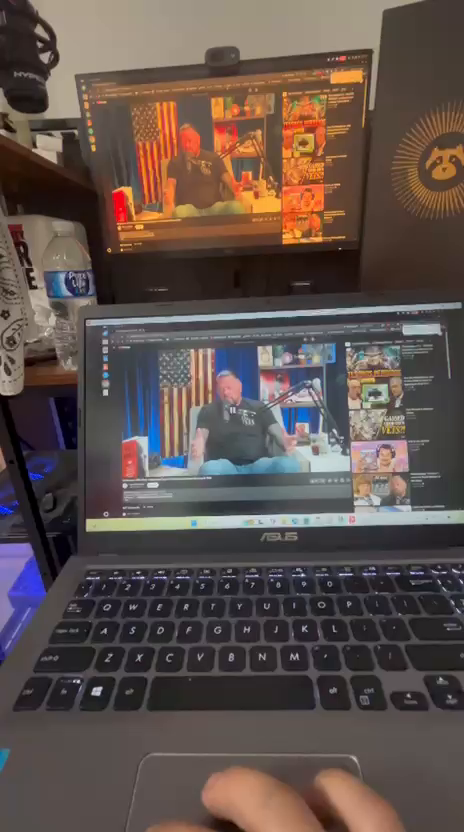 My laptop and desktop during the remote-session test. This photo shows the working display connection; it does not by itself prove an off-network connection.
What works—and what is still pending
| Check |
Result |
| Ubuntu wired adapter supports magic-packet wake |
Verified with ethtool |
| Wake settings survive a restart |
Verified in NetworkManager and on the adapter |
| Wake from suspend on home Wi-Fi |
Passed: the Windows laptop woke Ubuntu |
| NoMachine desktop control |
Working after initial blank-screen troubleshooting |
| Multiple monitors and desktop audio |
Working in my follow-up test |
| Wake from a phone hotspot |
Did not work with the local broadcast command |
| Unattended wake from outside home |
Pending an always-on laptop at home |
| Wake from full shutdown |
Separate verification still needed |
How the connection fits together
Current remote-access path: Windows laptop → Tailscale private connection → Ubuntu desktop → NoMachine session.
Planned remote-wake path: Windows laptop → Tailscale → always-on laptop at home → local wake packet → Ubuntu starts → NoMachine connection.
The desktop uses wired Ethernet. Tailscale makes the running computers privately reachable without exposing NoMachine’s desktop service through a router port-forward. It cannot receive a request on a computer that is asleep or powered off. That distinction became the main lesson of the hotspot test.
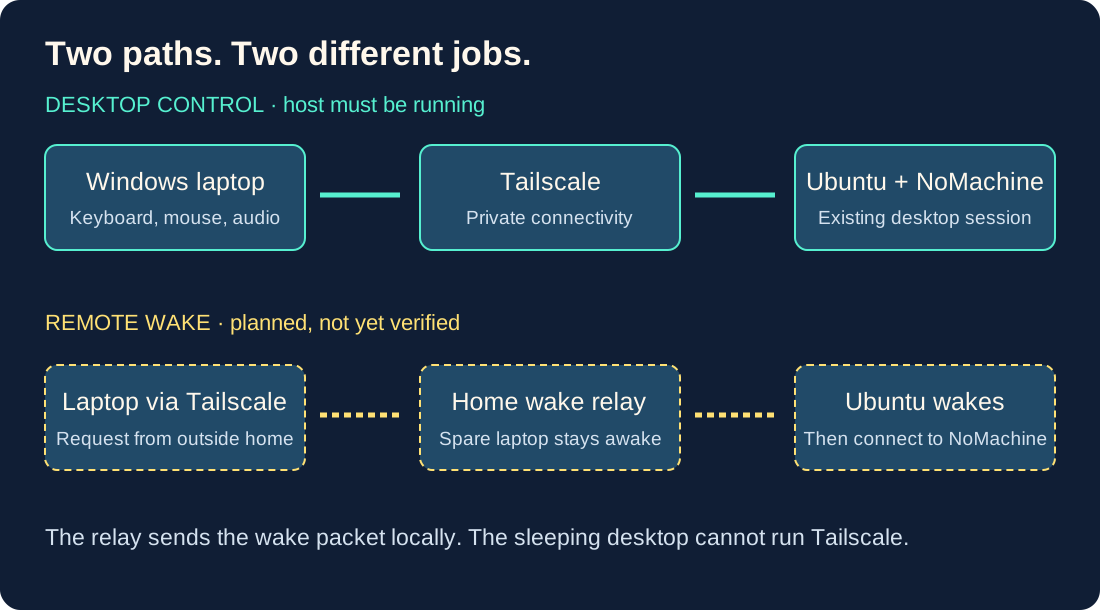 The current access path and the remaining remote-wake architecture.
Making wake settings persistent
The adapter initially reported Wake-on: d, meaning waking was disabled. I enabled magic-packet wake on enp3s0, then saved it in Netplan and explicitly set the NetworkManager connection profile to magic.
Applying Netplan produced a network-service reload warning. I checked the active services and confirmed Ethernet remained connected through NetworkManager. I then checked the profile rather than assuming the saved configuration had taken effect.
After restarting, these checks still returned the expected values:
nmcli -g 802-3-ethernet.wake-on-lan connection show "netplan-enp3s0"
# magic

sudo ethtool enp3s0 | grep -i wake
# Supports Wake-on: pumbg
# Wake-on: g
These are transcribed verification results from my lab notes. I kept the original configuration screenshots privately because they also contain device and network identifiers.
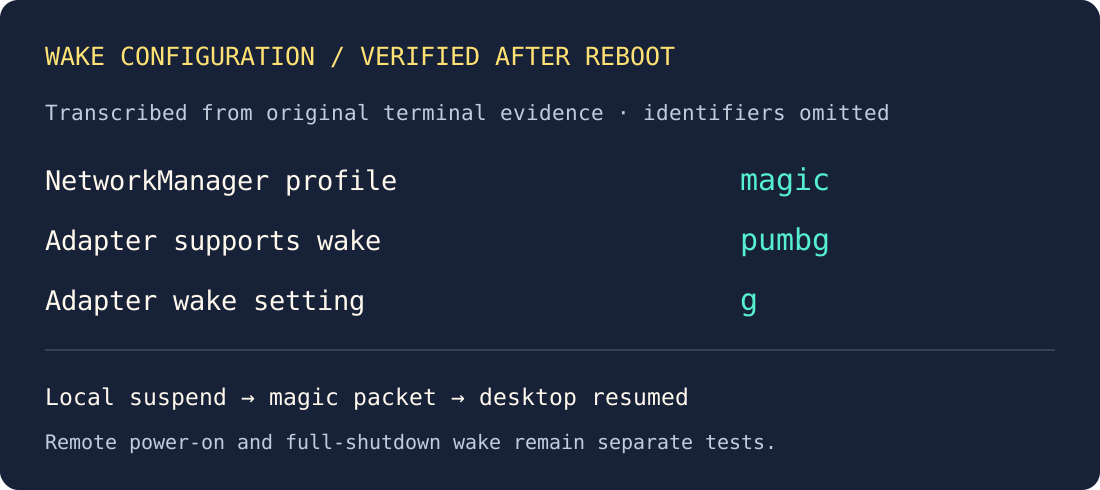 A readable transcription of the reboot check, not a recreated screenshot.
On Windows, I created a reusable Send-DesktopWake PowerShell function. It builds the magic packet from the desktop’s Ethernet MAC address and sends it over UDP to the home subnet’s broadcast address. I suspended Ubuntu, sent the packet from my laptop on home Wi-Fi, and watched the desktop resume. A “packet sent” message alone would not have proved the wake succeeded.
Troubleshooting the remote session
My first NoMachine connection reached Ubuntu but stopped at a license error. Activating the Personal Edition evaluation let me continue; this setup currently uses a trial, so ongoing use requires a licensing decision.
Next, the laptop showed a blank screen while Ubuntu reported an active viewer. I investigated screen-sharing and display settings rather than assuming Tailscale had failed. Earlier session logs showed Wayland capture errors; later logs showed successful capture and hardware encoding. I eventually confirmed desktop control, monitor switching, and audio were working. I have not established a single proven cause for the initial delay.
A short recording from my working session, showing interaction from the laptop and the corresponding desktop display. This published excerpt is silent; audio functionality is recorded in the test results above.
The checks that made the result meaningful
I separated connectivity from functionality. Reaching the login prompt showed that the remote service was reachable; it did not prove the display would render. Likewise, a desktop image did not prove I could switch monitors or hear sound. I checked those separately before calling the session usable.
For the dual-monitor setup, I used NoMachine’s display controls to switch remote monitors or view them together. Viewing one monitor at a time keeps text easier to read on a smaller laptop screen. Audio needed its own check through the session’s audio controls and the Windows output device.
The video above is a phone recording of this test, not a native screen recording. It now preserves the original video stream without an additional compression pass. A full-resolution screen capture is a future evidence improvement; upscaling this recording would not recover missing text detail.
Why the hotspot wake test failed
Changing the laptop to my phone’s hotspot moved it off the home network. My PowerShell function still sent a local broadcast wake packet, so it could no longer reach the sleeping desktop at home. Installing Tailscale on the desktop did not solve this: the desktop’s software is not running while it is off or asleep.
I checked my Verizon CR1000A router’s documented capabilities and did not find a built-in wake sender to use for this setup. The next step is to keep a spare laptop powered at home, connect it to Tailscale, and use it to send the local wake packet on request. The spare laptop still needs a charger.
Security decisions and limits
I used private connectivity instead of adding an internet-facing remote-desktop port-forward for this lab. Ubuntu still requires a system-account login. That reduces exposure, but it is not a claim that the entire setup has been security-audited.
Before adding the wake relay, I still need to review account MFA, authorized devices, access rules, firewall reachability, and update settings. The relay should only be reachable by my intended devices and have only the access it needs. I also keep authentication URLs, keys, MAC addresses, and personal network information out of the published evidence.
The remaining milestone
Set up the always-on home laptop as the wake relay. Then I’ll repeat the test from cellular data: wake Ubuntu, wait for Tailscale to reconnect, open NoMachine, and access a lab VM. I’ll test suspend and full shutdown separately and record the result of each. I’m not marking end-to-end remote power-on complete until that test passes.
For the portfolio, I selected demonstration footage rather than publishing every raw recording. Earlier blank-screen clips and screenshots with authentication links remain in my private troubleshooting evidence. Credentials, license keys, and personal network details do not belong in the public write-up.
References